Pinterest Idea Pin Analytics: How to Read an Old Idea Pin’s Stats Now
Pinterest Idea Pin analytics now: where an old Idea Pin’s stats live, why they hide behind the video filter, and what adding a link does to them.
Short answer: Idea Pins don’t have analytics of their own anymore, because in May 2023 Idea Pins became ordinary Pins.
Your old ones kept their numbers, though.
Open the Pin from the Created tab on your profile and click See more stats, or in Pinterest Analytics set Content type to Organic and Pin format to video.
That second step is the one people miss.
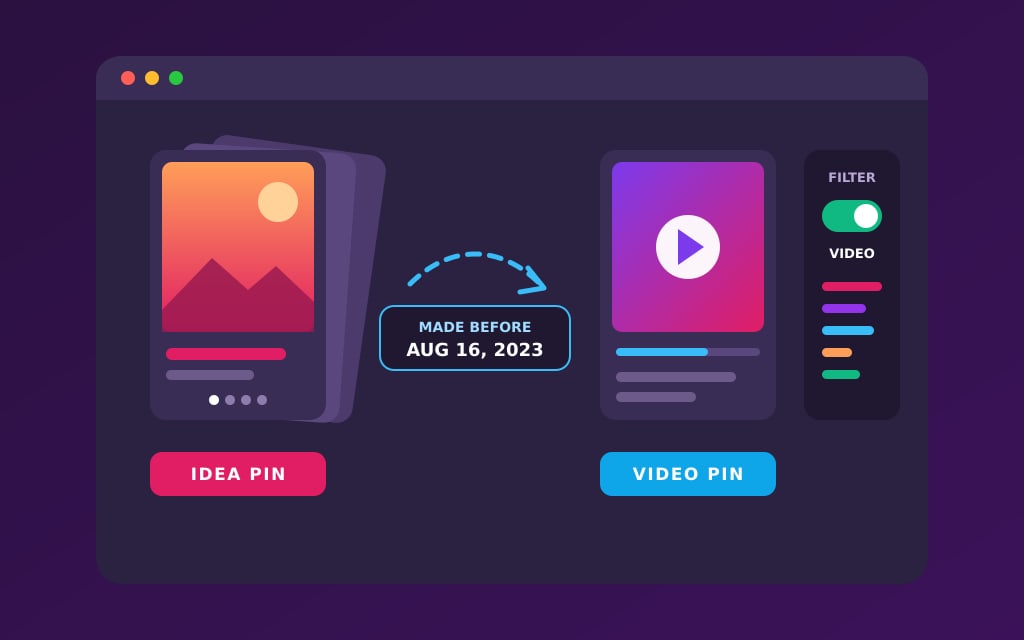
Every organic Idea Pin made before August 16, 2023 counts as a video, and video numbers only appear with the video filter on.
What happened to Idea Pins on Pinterest?
An Idea Pin used to be its own format.
You built it in the app from several pages, each one a photo or a clip, then added music or stickers and tagged the products in it.
It was also counted more fully than a standard Pin: profile visits and follows were tracked for Idea Pins well before standard Pins got them.
That ended in May 2023, when Pinterest folded the two formats into one.
The Idea Pin extras (music, stickers, product tags) and the standard Pin features (links, scheduling, editing after publishing, different aspect ratios) are now open to every image and video Pin.
Pages went away at the same time.
In the new tool, several photos or clips uploaded together on iOS or Android were stitched into one video Pin.
Your old Idea Pins weren’t deleted or rebuilt.
Pinterest kept them as they were and shows them as videos.
The change rolled out over a few months, and the date that matters for your stats comes later than the announcement.
Every organic Idea Pin created before August 16, 2023 counts as a video in Pin stats, and a single-image Idea Pin made on or after that day counts as an image.
So you won’t find an Idea Pin tab, report or filter in Analytics today.
For organic Pins, the format filter speaks in images and videos.
The word lives on mainly on the paid side, where Idea ads are still an ad format you can filter by.
Three dates that decide what an old Pin shows
March 20, 2023: a Pin made before it has lifetime totals only if it’s a video or an Idea Pin, and profile visits and follows only if it’s an Idea Pin. May 11, 2023: Idea Pins become ordinary Pins. August 16, 2023: an organic Idea Pin made before it counts as a video; a single-image one made after it counts as an image.
How to see an old Idea Pin’s analytics
You need a business account for any of this.
A personal account only gets a lite version of Pin stats: engagement such as likes and reactions, plus the boards a Pin was saved to.
Personal vs business accounts covers what changes when you switch.
There are two places to look, and they answer different questions.
Pin stats show one Pin.
Analytics shows a group of Pins over a date range you pick.
One Pin: Pin stats
- Log in to your business account and click your profile picture at the top right.
- Click Created under your profile name and pick the old Idea Pin.
- Click See more stats under the Pin.
- Open the Video stats tab. The Overall tab holds impressions, saves, Pin clicks and outbound clicks, while the play numbers sit on the video tab.
In the app it’s the same route: your profile, Created, the Pin, then Pin Stats (or See more) below it, and tap into the video stats from there.
Many Pins: Pinterest Analytics
- Open the menu at the top left and choose Overview under Analytics.
- Click More filters at the top right.
- Set Content type to Organic, then pick video under Pin format.
- Choose a date range and read the video columns. Click Export if you’d like the numbers in a spreadsheet.
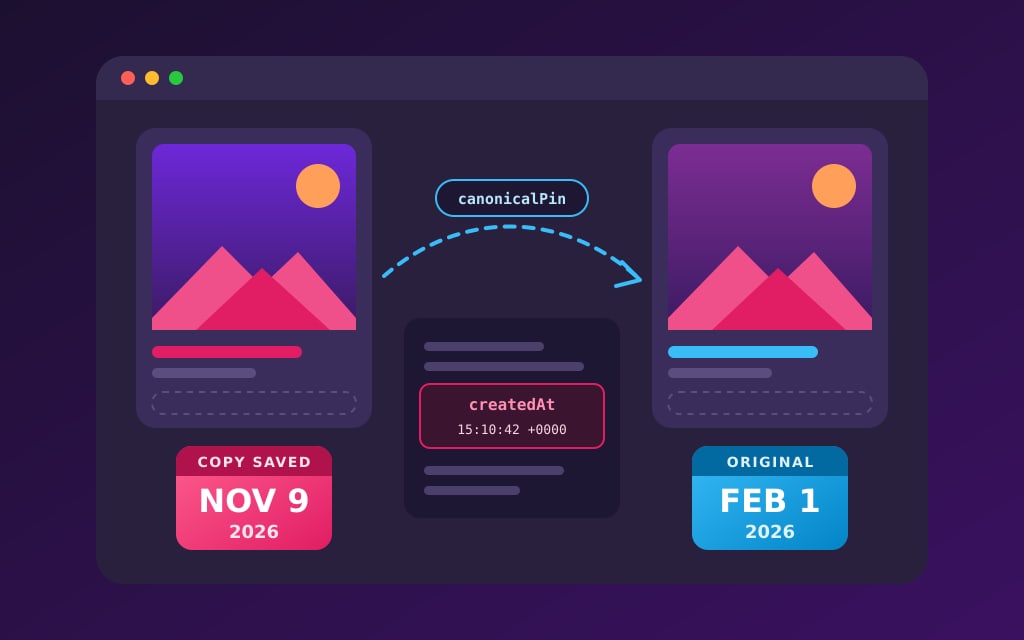
To check which side of August 16, 2023 a Pin falls on, read its creation date.
Every Pin carries one in its page code, and how to see when a Pin was posted walks through the one-minute way to find it.
Why an old Idea Pin looks empty in Pinterest Analytics
If your old Idea Pins look blank, the numbers are usually still there.
Three ordinary reasons explain it, and each one takes about a minute to rule out.
1. The video filter is off
Analytics keeps video metrics out of view until the video Pins filter is on.
The default view shows the core numbers every Pin has: impressions, saves, Pin clicks, outbound clicks and follows.
Pinterest treats an old Idea Pin as a video, so its video views, 10-second plays and play time stay hidden until you flip that filter.
2. The months that mattered are outside the window
Analytics lets you pick custom date ranges going back a year and a half, plus the last 48 hours as live estimates.
Today, November 17, 2026, that window starts in mid-May 2025.
Pinterest stopped letting anyone make Idea Pins in 2023, so the launch weeks of every Idea Pin you ever published sit outside it.
A Pin that did most of its work in its first months can look dead in Analytics even if it once carried your account.
The full record still exists.
Pinterest keeps lifetime totals for each Pin, and for a Pin made before March 20, 2023, lifetime metrics exist only for video and Idea Pin formats.
That’s good news for your old Idea Pins.
Just never put a lifetime total next to a windowed one.
An old Idea Pin can show thousands of lifetime impressions and only a few hundred for the last 90 days, and both numbers are right.
They simply cover different stretches of time.
3. The last two days are estimates
Pinterest’s live numbers for the last 48 hours are estimates, and they can go down as well as up.
For an old Pin this rarely matters, but it’s why a quick check can show a dip that’s gone the next morning.
Pinterest analytics not updating goes through the delays in more detail.
The video numbers on an old Idea Pin, one by one
Five numbers turn up once the video filter is on.
Their definitions are short, and two of them behave differently on a Pin made of pages.
- Video views: a play of at least 2 seconds in a row, with at least half the video on screen.
- 10-second plays: plays that lasted 10 seconds or more.
- Played to 95%: plays that reached 95% of the length. Skipping ahead to that point counts too.
- Average play time: the average time someone spent playing the Pin. On a Pin with pages, it includes the time spent on static image cards, not just the clips.
- Total play time: all of the playing added up, in minutes.
An Idea Pin built from still photos, with text on each page, still racks up play time.
That time is real attention, but it isn’t video watching in the usual sense, so don’t judge one on the same scale as a 30-second clip.
And since skipping to the end counts as reaching 95%, a reader who taps straight to your last page for the answer can push that number up.
Three ratios worth working out
Raw counts mostly tell you how often a Pin was shown.
Ratios tell you how well it held people once it was.
Use the same 30 days for all three.
- Play rate = video views ÷ impressions. How often being on screen turned into a real play.
- Hold rate = 10-second plays ÷ video views. How many plays lasted past the opening seconds.
- Finish rate = plays to 95% ÷ video views. Read it with the skip-ahead rule in mind.
A worked example (made-up numbers)
Say an old five-page Idea Pin shows 4,000 impressions, 1,200 video views, 300 10-second plays and 180 plays to 95% over 30 days. Its play rate is 30% (1,200 ÷ 4,000), its hold rate is 25% (300 ÷ 1,200) and its finish rate is 15% (180 ÷ 1,200). Put them next to the same three ratios for your newer video Pins, and the gaps show you which old Pins still hold attention.
Pinterest’s help pages define these numbers but don’t set targets for them, so the fair yardstick is your own Pins read over the same dates.
The metrics that matter helps you decide which of them to act on first.
What an old Idea Pin kept that an old standard Pin never had
Until spring 2023, Idea Pins were tracked more fully than standard Pins, and that gap is still sitting in your account.
- Lifetime totals. For a Pin made before March 20, 2023, Pinterest only has lifetime numbers if it’s a video or an Idea Pin.
- Profile visits and follows. Before that same date, only Idea Pins carry them. Every Pin made since has both, whatever its format.
Here’s what that means in practice.
If you want to know which of your 2022 Pins brought you followers, your old Idea Pins are the only ones that can answer.
A 2022 image Pin with a blank follows count didn’t necessarily earn zero follows.
Pinterest just doesn’t have that number for that format and date.
It also makes one ratio possible for old Idea Pins that you can’t work out for old image Pins: follows per 1,000 impressions, taken from the lifetime totals.
Compare it with the same ratio on your Pins made since March 20, 2023, which all carry follows.
Profile visits covers how those two numbers are counted, and why Pin stats go missing covers the other blanks you’ll meet on older Pins.
Adding a link to an old Idea Pin: what happens to the numbers
Since June 2023 you can add a link to any Pin, and old Idea Pins can be edited to take one.
It’s tempting when an old Idea Pin still gets shown and has nowhere to send anyone.
Before you do it, know the two things it changes in your stats.
- Reactions and comments go. Editing the link on any Pin, Idea Pins included, removes its earlier reactions and comments.
- Outbound clicks start that day. Pinterest counts outbound clicks from the date the link is added. Everything before it is zero by definition, not because nobody was interested.
It appeared
ImpressionsReachMonthly views
They reacted
SavesPin clicksEngagement rate
They left
Outbound clicks
Each family is a fraction of the one above it. Only the bottom one has been to your website.
Run it as a before-and-after test
- Write down the Pin’s reactions and comments, and screenshot its Pin stats. Once the link is in, that’s your only record of them.
- Note its impressions and saves for the 30 days before the edit, and its video views too.
- Add the link and write down the date.
- Thirty days later, read the same numbers for the 30 days after, plus outbound clicks. Then work out the outbound click rate (outbound clicks ÷ impressions) for those 30 days only.
If impressions and saves held steady and the Pin now sends clicks, the edit paid off.
If impressions dropped right after, give it another 30 days before you decide, because a single month of an old Pin can move for reasons that have nothing to do with the link.
Outbound clicks explains what does and doesn’t count as one.
How to track old Idea Pins next to your new Pins
Two limits make a sheet of your own worth ten minutes.
Analytics only reaches back a year and a half, and an app that pulls per-Pin numbers from Pinterest’s API can only ask for up to 90 days back from today.
A line you write down each month never ages out.
Make one row per old Idea Pin, with these columns:
- The Pin’s link and its creation date, and whether that’s before August 16, 2023.
- Lifetime impressions, saves, profile visits and follows, written down once.
- Link added: the date, or “none”.
- Then, every month, the last 30 days: impressions, saves, video views, 10-second plays and, once it has a link, outbound clicks.
Keep the monthly read on the same 30-day window every time, so you’re always comparing like with like.
Switch to 90 days when the question is whether the whole account is growing, and keep 7-day reads for checking that something isn’t broken right now.
Did this pin work?
30 days
Is the account growing?
90 days
Did the change I made help?
Same 30 days, month on month
Is something broken right now?
7 days, and only for that
The question picks the range. Picking the range first is how you get the answer you wanted.
After three months, the sheet answers questions Pinterest’s own screens don’t put side by side.
Which old Idea Pins are still being shown at all?
Which ones hold people better than your newer video Pins?
Which topics keep pulling impressions two or three years on?
Analytics date ranges has more on picking the window for each question.
An old Idea Pin with no impressions for 90 days is quiet, not broken.
Leave it up.
Its lifetime numbers are a record you can’t rebuild once the Pin is deleted.
The topics are the useful part.
When an old Idea Pin keeps drawing impressions, find out which keyword it’s being shown for and whether that keyword still has demand.
PinPinterest tracks where your Pins land in Pinterest search for the keywords you save, with a history chart, and measures each keyword’s demand from the saves real Pins earn on it.
Together they tell you whether the topic deserves a fresh video Pin.
See which Pins and keywords are still working for you
#idea pins#pin stats#video metrics#pinterest analytics
More in Analytics17 other guides in this categorySee all